Working in 3D Space
You've met vectors, quaternions, and matrices on their own. This page is where they come together to do the thing you actually came for: put a 3D object on screen, in the right place, seen through a camera, and moving.
The trick that makes all of 3D graphics work is a chain of three matrices (model, view, and projection) multiplied together and handed to your shader. Once that pipeline clicks, everything else is a variation on it. Let's build it step by step.
Follow along
This page distills the runnable example at examples/02_3D_cube.php. If you'd like to see the whole thing render, run it:
Moving, turning, and scaling
Before we build a single matrix for the pipeline, it helps to know the three moves every one of them is made from. A fresh Mat4 starts as the identity, a matrix that changes nothing, sitting an object right at the origin. From there you nudge it around with three transforms: translation, rotation, and scale. Everything you do to place an object in the world is some combination of these.
Each one is a method on Mat4 that changes the matrix in place, so you can stack them up.
Translation: move it
Translation slides an object from where it is to somewhere else, without turning or resizing it. You give it an offset vector, and every point of the object shifts by that same amount.
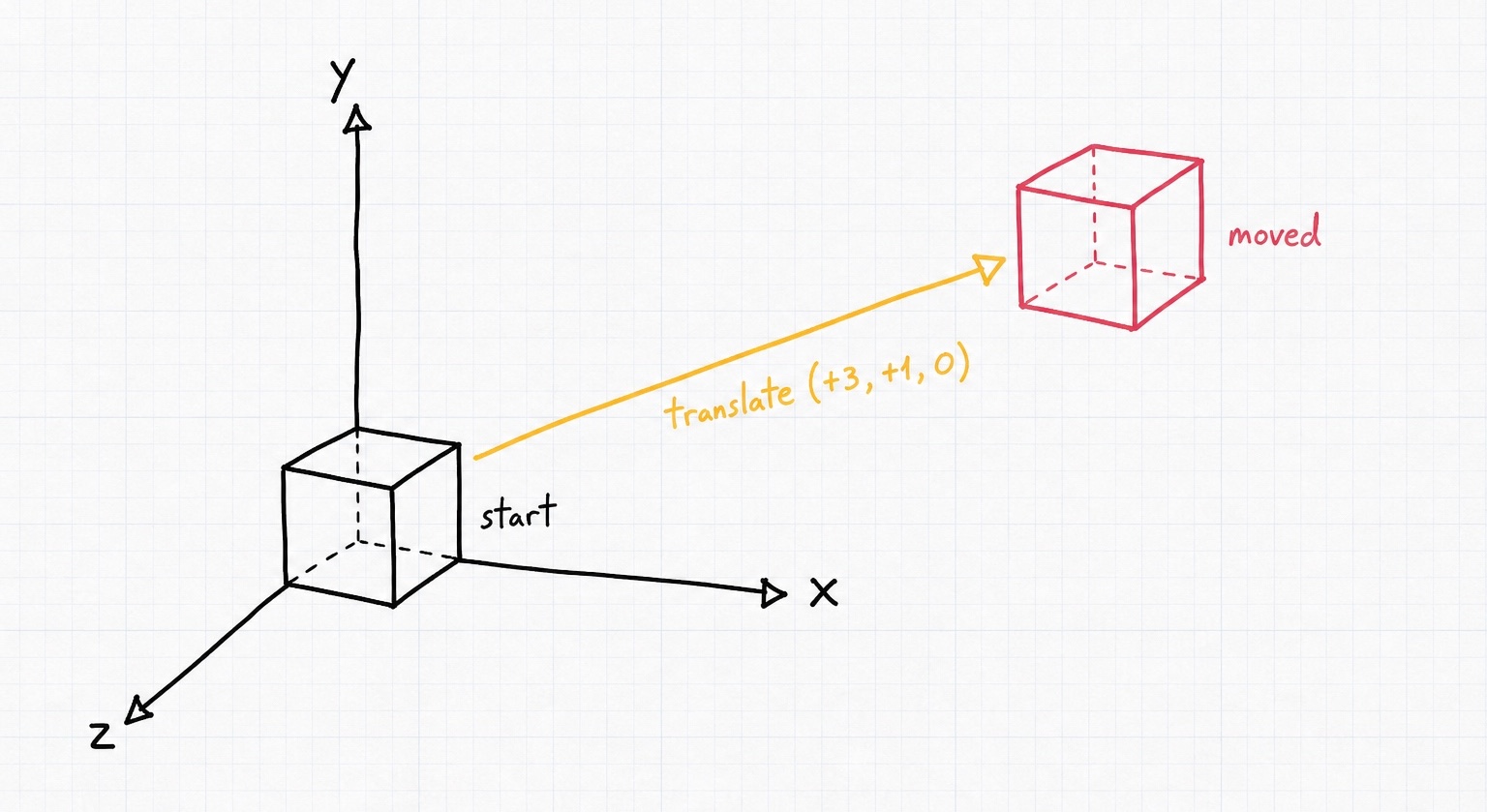
use GL\Math\{Mat4, Vec3};

$model = new Mat4;                     // identity: sits at the origin
$model->translate(new Vec3(3, 1, 0)); // move 3 to the right and 1 up
Rotation: turn it
Rotation spins an object around an axis that passes through the origin. You pass the angle (in radians, so wrap degrees in GLM::radians()) and the axis to turn around. A Vec3(0, 1, 0) axis spins it around the vertical Y axis, like a turntable.
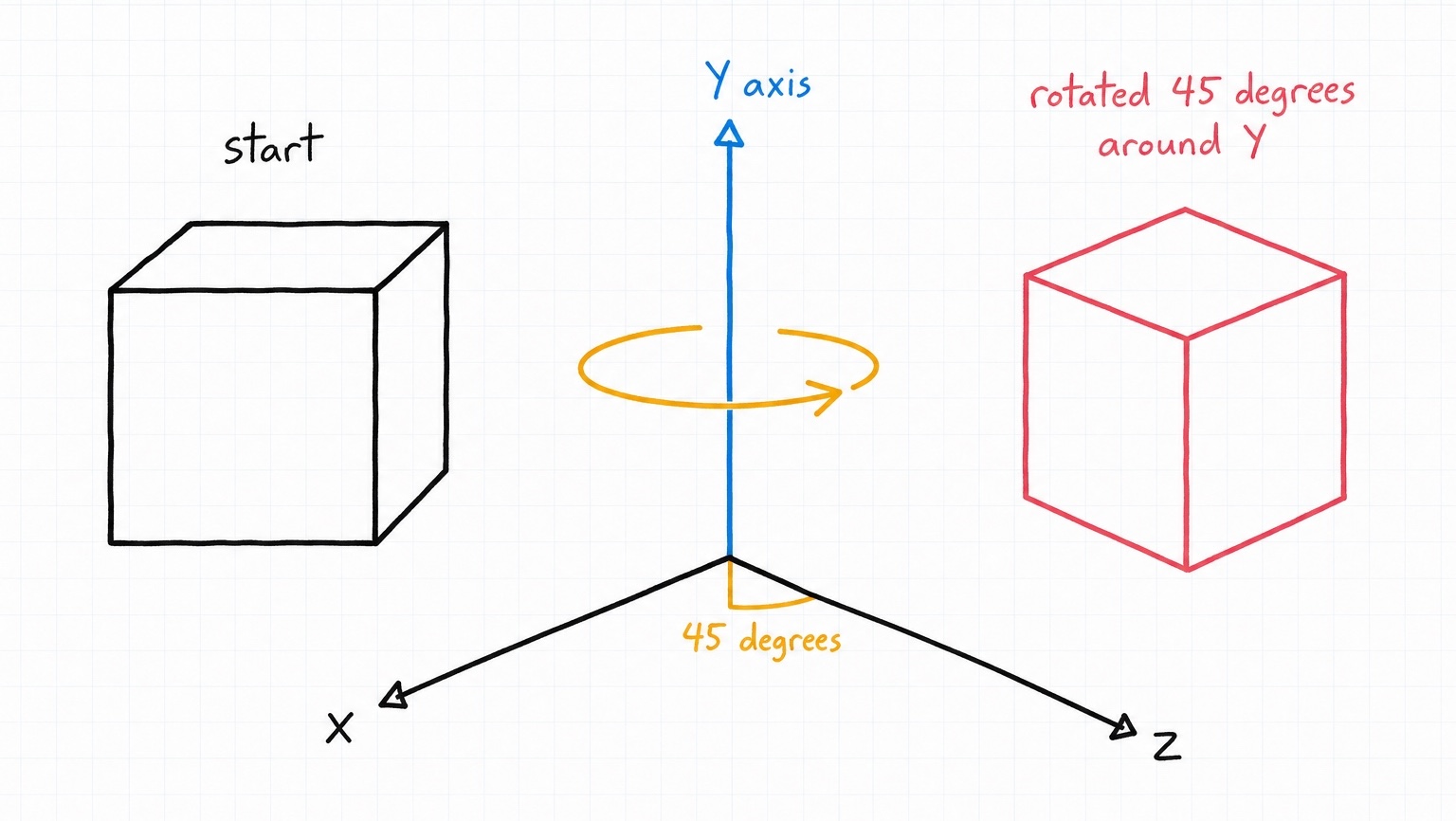
use GL\Math\{Mat4, Vec3, GLM};

$model = new Mat4;
$model->rotate(GLM::radians(45), new Vec3(0, 1, 0)); // 45 degrees around the Y axis
Scale: resize it
Scale grows or shrinks an object. Pass a factor per axis: 2 doubles that dimension, 0.5 halves it. Using the same factor on all three axes keeps the shape's proportions.
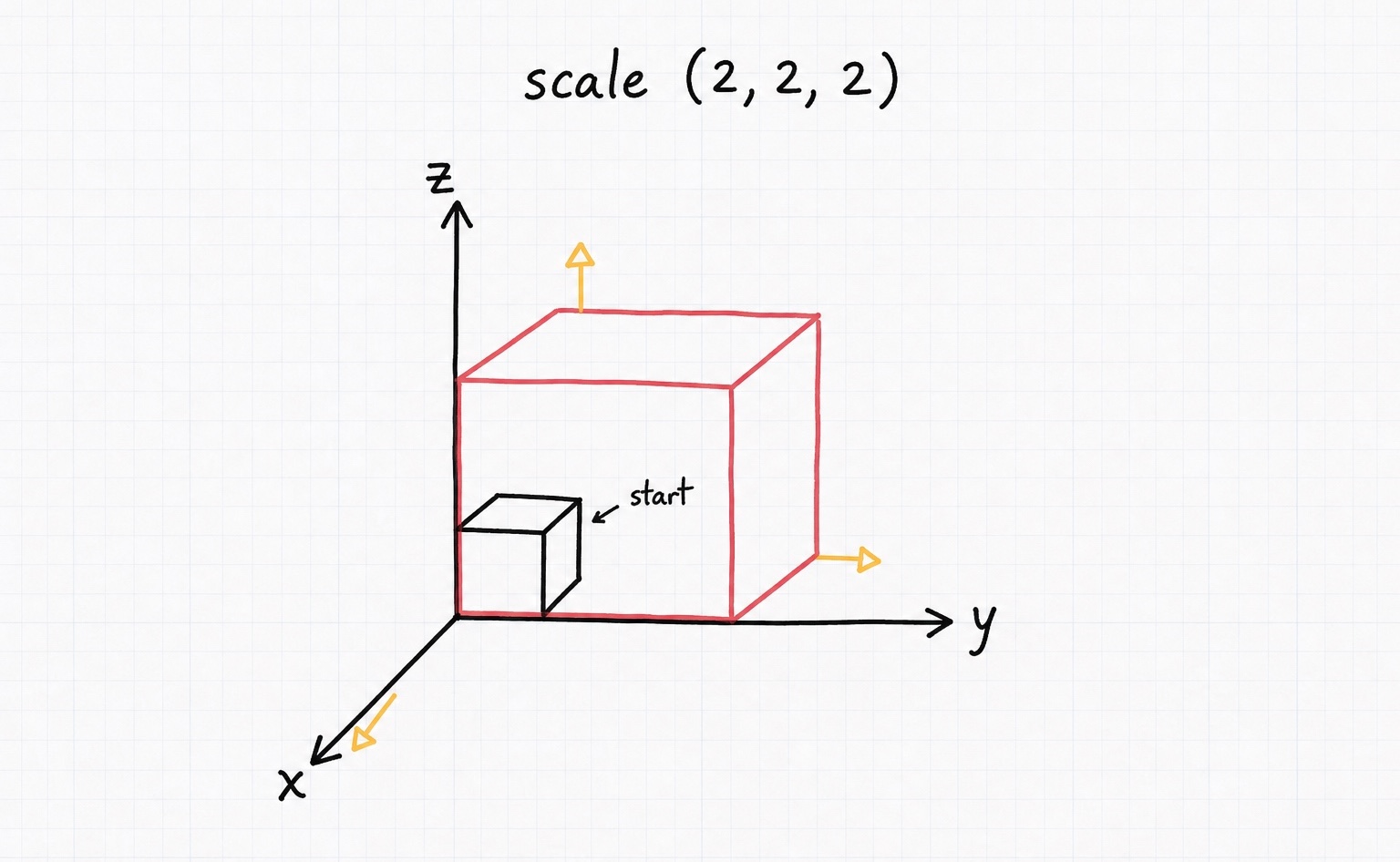
use GL\Math\{Mat4, Vec3};

$model = new Mat4;
$model->scale(new Vec3(2, 2, 2)); // twice as large on every axis
Order matters
Because these transforms build on one another, the order you apply them in changes where the object ends up. Translating and then rotating swings the object around the origin on an arc; rotating and then translating turns it in place and then steps it out. Same two moves, different destinations.
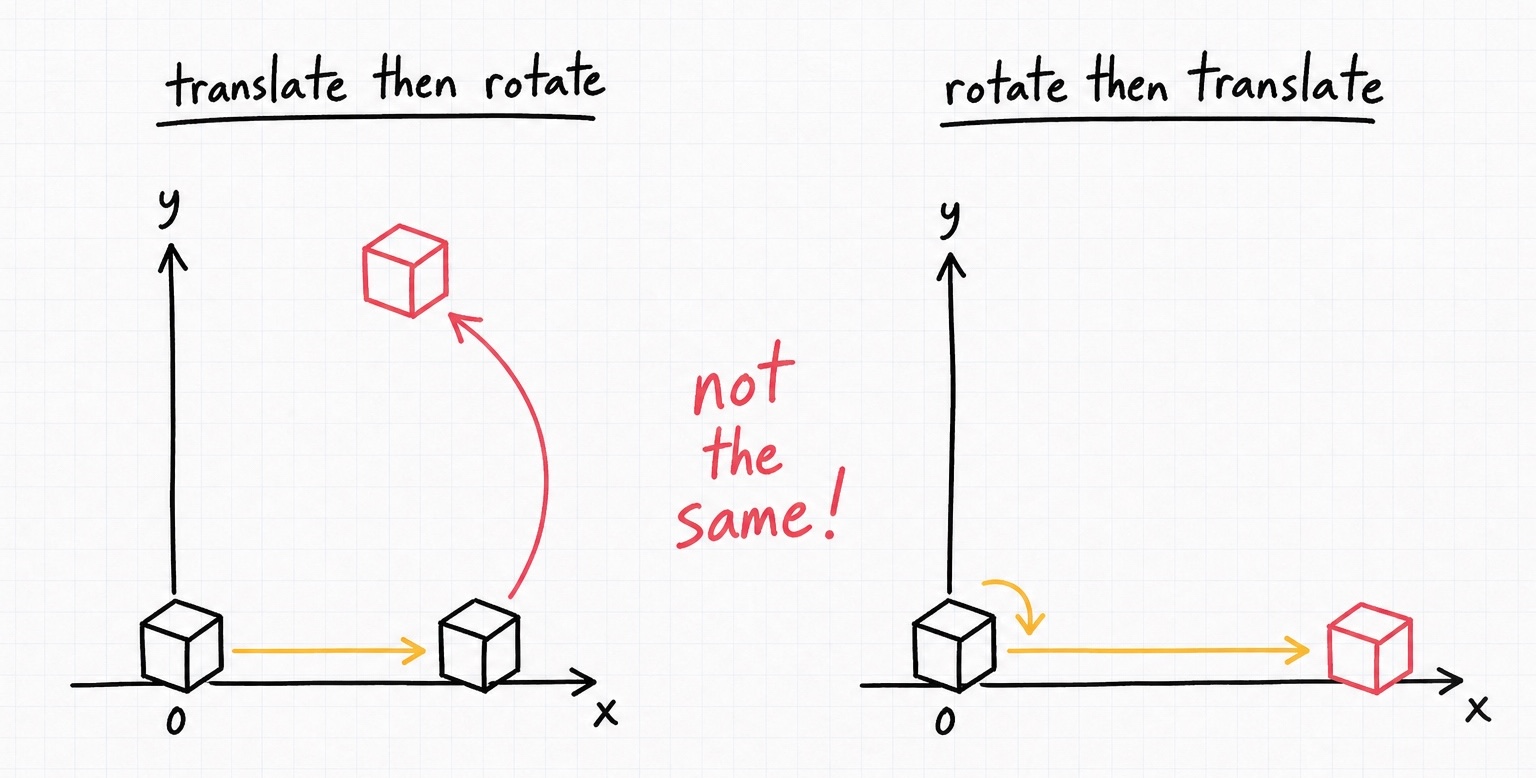
use GL\Math\{Mat4, Vec3, GLM};

// translate, then rotate: the cube swings around the origin
$a = new Mat4;
$a->translate(new Vec3(3, 0, 0));
$a->rotate(GLM::radians(45), new Vec3(0, 1, 0));

// rotate, then translate: the cube turns in place, then steps out
$b = new Mat4;
$b->rotate(GLM::radians(45), new Vec3(0, 1, 0));
$b->translate(new Vec3(3, 0, 0));
Keep this in the back of your mind: it is the same reason the full projection * view * model chain later on is read in a specific order. With these three moves in hand, a model matrix is just a combination of them, so let's put them to work.
The three matrices
Every vertex of your object makes a journey from its own local space all the way to the screen, and each matrix handles one leg of that trip:
- Model places the object in the world. Where is the cube? How is it rotated? How big is it?
- View places the camera. Moving the camera right is the same as moving the whole world left, and that's exactly what this matrix does.
- Projection flattens the 3D world onto your 2D screen, adding perspective so distant things look smaller.
In the shader, a vertex is transformed by all three, in that order:
Our job on the PHP side is to build those three matrices each frame and send them over. Let's take them one at a time.
Step 1: The model matrix
The model matrix says where this particular object lives. Start from identity and apply the transforms you need. Because we want the cube to spin, we rotate it based on the elapsed time so it turns a little more every frame:
use GL\Math\{Mat4, Vec3};

$model = new Mat4;
$model->rotate(glfwGetTime() * 2, new Vec3(0.0, 1.0, 0.0)); // spin around y
$model->rotate(glfwGetTime() * 2, new Vec3(0.0, 0.0, 1.0)); // and around z
Each object you draw gets its own model matrix. Want a second cube five units to the right? Build another Mat4 and translate() it: same geometry, different transform.
Step 2: The view matrix
The view matrix is the camera. There's a small mental flip here worth internalizing: to move the camera backward, you translate the world forward (toward the viewer). So pushing everything 2 units down the negative z axis is the same as stepping the camera 2 units back:
When you want a camera that aims at a specific target rather than one you nudge by hand, reach for lookAt() instead. You give it the eye position, the point to look at, and an up vector, and it builds the view matrix for you.
Step 3: The projection matrix
Finally, the projection matrix adds perspective. We pass a field of view, the window's aspect ratio, and the near and far clipping planes:
use GL\Math\GLM;

$projection = new Mat4;
$projection->perspective(
    GLM::radians(70.0),          // field of view
    800.0 / 600.0,               // aspect ratio: window width / height
    0.1,                         // near plane
    100.0                        // far plane
);
The projection rarely changes, typically only when the window is resized, so in a real app you might build it once outside the render loop. For a 2D or UI-style view where distance shouldn't shrink things, swap in ortho().
Step 4: Send them to the shader
Now hand the three matrices to your shader as uniforms. You can pass a Mat4 straight to glUniformMatrix4f, with no manual unpacking needed:
glUniformMatrix4f(glGetUniformLocation($shader, "model"), GL_FALSE, $model);
glUniformMatrix4f(glGetUniformLocation($shader, "view"), GL_FALSE, $view);
glUniformMatrix4f(glGetUniformLocation($shader, "projection"), GL_FALSE, $projection);
That's the whole pipeline. The shader multiplies them together for every vertex, and your object appears, positioned, viewed, and projected.
Putting it in the render loop
Here's how those steps sit inside a real frame. The matrices are rebuilt every iteration so the cube animates:
use GL\Math\{Mat4, Vec3, GLM};

while (!glfwWindowShouldClose($window))
{
    glClearColor(0, 0, 0, 1);
    glClear(GL_COLOR_BUFFER_BIT | GL_DEPTH_BUFFER_BIT);
    glUseProgram($cubeShader);

    // model: where the cube is, spinning over time
    $model = new Mat4;
    $model->rotate(glfwGetTime() * 2, new Vec3(0.0, 1.0, 0.0));
    $model->rotate(glfwGetTime() * 2, new Vec3(0.0, 0.0, 1.0));

    // view: the camera, pushed 2 units back
    $view = new Mat4;
    $view->translate(new Vec3(0.0, 0.0, -2));

    // projection: perspective onto the screen
    $projection = new Mat4;
    $projection->perspective(GLM::radians(70.0), 800.0 / 600.0, 0.1, 100.0);

    // upload all three and draw
    glUniformMatrix4f(glGetUniformLocation($cubeShader, "model"), GL_FALSE, $model);
    glUniformMatrix4f(glGetUniformLocation($cubeShader, "view"), GL_FALSE, $view);
    glUniformMatrix4f(glGetUniformLocation($cubeShader, "projection"), GL_FALSE, $projection);

    glBindVertexArray($VAO);
    glDrawArrays(GL_TRIANGLES, 0, 36);

    glfwSwapBuffers($window);
    glfwPollEvents();
}
Don't forget depth testing
A 3D object has triangles that overlap and hide one another. Without depth testing, whichever triangle is drawn last wins, and your cube looks inside-out. Enable it once during setup and clear the depth buffer each frame (note the GL_DEPTH_BUFFER_BIT in the glClear above):
A note on multiplication order
If you ever build the combined matrix on the PHP side rather than in the shader, remember that order is everything and PHP can reorder * operands (see the Overview). Parenthesize each step and keep intermediates in their own variables:
Read projection * view * model right to left: the model transform runs first, then the view, then the projection, the exact journey each vertex takes.
Rotating with quaternions instead
Stacking rotate() calls on the model matrix is perfectly fine for simple spins. But when you need to blend smoothly between two orientations, or you're worried about gimbal lock, build the rotation as a quaternion, convert it to a matrix, and fold it into your model transform:
use GL\Math\{Mat4, Quat, Vec3, GLM};

$rotation = new Quat();
$rotation->rotate(GLM::radians(45), new Vec3(0, 1, 0));

$model = new Mat4;
$model->translate(new Vec3(0, 0, 0));
$model = $model * $rotation->mat4(); // apply the quaternion's rotation
Where to go next
You now have the core loop of every 3D renderer. From here you might:
- Load real geometry instead of a hand-typed cube, see Wavefront Object Files.
- Revisit any single piece: Vectors, Quaternions, or Matrices.
- Reassure yourself the math is fast enough for a real render loop, see Performance.